
QR Code Generator by Yoshinya
The code works, but it looks like nothing. A grid of black squares on your flyer, your packaging, your business card — the one element on the page that carries none of your brand. Sound familiar? QR Code Generator by Yoshinya puts your colours on the code and your logo, or a word, in the middle of it. Make one from a URL, WiFi details, a contact card or an email, save it as a PNG or an SVG for print, or paste a list and get every code at once in a ZIP. No short link sits inside the code either, so nothing expires and nobody counts the scans. Nothing you type is sent to a server, so a WiFi password or a phone number goes no further than this browser.
- Free
- No sign-up
- Processed in your browser
🔒 Nothing you type is sent to a server. All processing happens in your browser.
① Choose what to encode
② Adjust the code
Colours
In the middle
③ Save it
Fill in the fields above and the code appears here.
Choose SVG for anything going to print: it stays sharp at any size.
④ Make many at once
One per line. Write "name,value" to choose the file name inside the ZIP; lines starting with # are ignored.
Add at least one line to generate a ZIP.
QR Code is a registered trademark of DENSO WAVE INCORPORATED.
How to use this tool
How to use the tool
- In ① Choose what to encode, pick what the code holds — a URL, plain text, WiFi details, a contact card or an email — and fill in the fields.
- In ② Adjust the code, set the error correction, the PNG size and the quiet zone. The defaults suit most uses.
- The code appears in ③ Save it as you type. Press Save as PNG for screens, or Save as SVG for print.
- To make a batch, paste one line per code into ④ Make many at once and press Generate and download the ZIP.
- To brand the code, set the two colours in ② Adjust the code, then choose what sits In the middle: Nothing, a Logo picked with Choose an image, or Text you type, with its own colour and size. Back to black on white puts the colours back, and Remove the logo takes a logo out again.
When is it useful?
- Putting a link on a flyer, a poster or packaging that has to still work in two years.
- Letting guests onto the WiFi without reading a password out loud.
- Adding a contact card to a business card or an email signature.
- Making one code per seat, table, shelf or product from a list you already have.
- Working with an address you would rather not hand to a third-party service.
Why these codes never expire
Many free generators do not put your address in the code at all. They put their own short link in it, which redirects to you. That is how a code can be edited after printing — and also how it dies: when the service shuts down, changes its plans, or simply decides your free link has lasted long enough, every copy you printed stops working at once. It is also how scans get counted, because every scan passes through their server first. This tool writes your address directly into the image. Nothing sits in between, so there is nothing to expire, nothing to meter, and nothing that can be taken away later. The trade-off is the honest one: a printed code cannot be repointed afterwards, because the destination is the code.
Choosing an error-correction level
A QR code carries spare data so it can still be read when part of it is dirty, creased or covered. M recovers about 15% and suits anything on a screen or a clean page. Choose H, about 30%, for labels that get handled, stickers on curved surfaces, or a code printed over a background. The spare data takes room: at the same physical size, a higher level means smaller modules, so going straight to H for everything can make a small print harder to read rather than easier.
WiFi codes and the password
A WiFi code holds the network name and the password as plain text. Anyone who scans it joins the network, and anyone who scans it with a reader app can read the password off their own screen. That is the right trade for a guest network printed on a card at reception, and the wrong one for the network your office files sit on. Hidden networks need This network is hidden ticked, otherwise some phones will not find them; leaving it ticked for a normal network causes the opposite failure.
Making many at once
The bulk box takes one code per line, up to 200 at a time. A line of the form "name,value" uses the text before the first comma as the file name inside the ZIP — only the first comma is used as the separator, so a URL carrying commas of its own stays intact. Lines starting with # are ignored, which lets a pasted spreadsheet header stay for reference. Repeated names get a number so that no file silently overwrites another, and anything a file system would refuse is removed from the name.
Brand colours and a logo in the middle
Both are supported, and both are limits rather than preferences. A scanner finds the code by the difference between dark modules and a light field, so the two colours need a real gap between them — the tool measures the contrast and warns when the pair is too close, which is the usual fate of a mid-weight brand colour on white. A code lighter than its background is flagged separately, because some scanners refuse an inverted code outright. The middle can hold a logo or a short word, and either one covers modules that are rebuilt from the error-correction data — which is why choosing one moves the level to H, why a logo stops at a quarter of the width, and why a word’s font shrinks by itself rather than cutting a stripe across the code. A panel in the background colour is painted under both, so that no fragment of a module shows through to be read as data. A word takes the code’s colour unless you give it one of its own, and a saved SVG keeps it as real text, so it appears in whatever font opens the file; a PNG keeps exactly what the screen showed. None of this guarantees a scan: test the finished code with a phone before printing a thousand of them.
Privacy and security
Everything happens in this tab. What you type is not sent to a server, and the codes are drawn in your browser — so a WiFi password, a phone number or an unannounced product URL goes no further than this device. Because no redirect sits inside the code, no one — including this site — can count or log the scans. Your settings for size, margin and error correction are remembered on this device so you do not set them twice; what you typed is never stored.
Frequently asked questions
- What does a finished code actually look like?
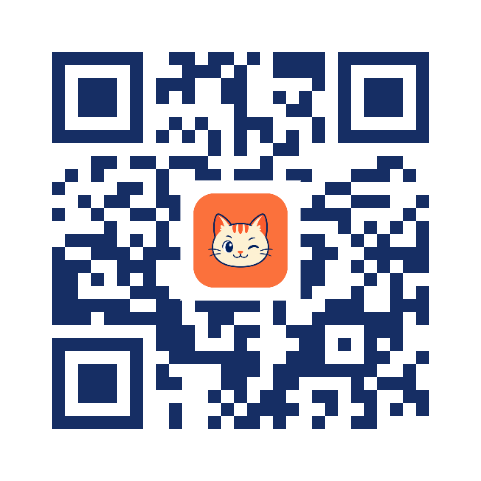
- Here is the Yoshinya home page as a code, twice: once with the logo in the middle, once with a word. Both use the brand navy on white, both were made with this tool in a couple of minutes, and both open the home page when scanned.

- Will the code stop working after a while?
- No. The address is inside the image itself, so there is no link of ours that could expire and no account that could lapse. As long as the page you pointed it at exists, the code works.
- Can I see how many people scanned it?
- No, and neither can we. Counting scans requires a redirect through someone’s server, which is exactly what this tool avoids. If you need the numbers, point the code at a page you can measure yourself.
- Can I use the codes commercially?
- Yes. The codes you generate are yours to use, including on products and printed material, with no attribution and no sign-up. QR Code is a registered trademark of DENSO WAVE INCORPORATED; the trademark covers the name, not your use of a code.
- My printed code will not scan. What went wrong?
- Usually size or contrast. Keep the code at least 2 cm across for a phone at arm’s length, keep the quiet zone (the blank border) intact, and print dark on light — an inverted code is unreadable to many scanners. If it is printed on something that gets handled, generate it again at error correction H.
- PNG or SVG?
- SVG for anything going to print, because it stays sharp at any size and the modules never land on half a pixel. PNG for screens, documents and anywhere a vector file is awkward.
- Does Japanese text work?
- Yes. Text is encoded as UTF-8, so Japanese in a WiFi name, a contact card or plain text scans as what you typed rather than as mojibake.
- Can I use my brand colours?
- Yes, within what a scanner can see. Paste the hex code from your brand guide straight into the field beside the swatch. The tool measures the contrast between the two colours and warns when they are too close — a mid-weight brand colour on white often is. Keep the code darker than its background, and test the result rather than trusting the screen: a pair that reads on a bright monitor can fail on paper.
- Will a logo or some text in the middle stop it from scanning?
- Not at the sizes this tool allows. The modules under a logo or a word are rebuilt from the error-correction data, so choosing either switches the level to H, and the size is capped — a quarter of the width for a logo, and a font that shrinks itself for a word. That leaves the redundancy with room for the creases and thumbprints a printed code picks up. Scan it once with a phone before you commit it to print.
- Is what I type sent anywhere?
- No. The code is built in your browser, nothing is uploaded, and what you type is not stored on this device either. Only your size and error-correction settings are remembered.